
7 Free Web Design Tools for Beginners in 2026
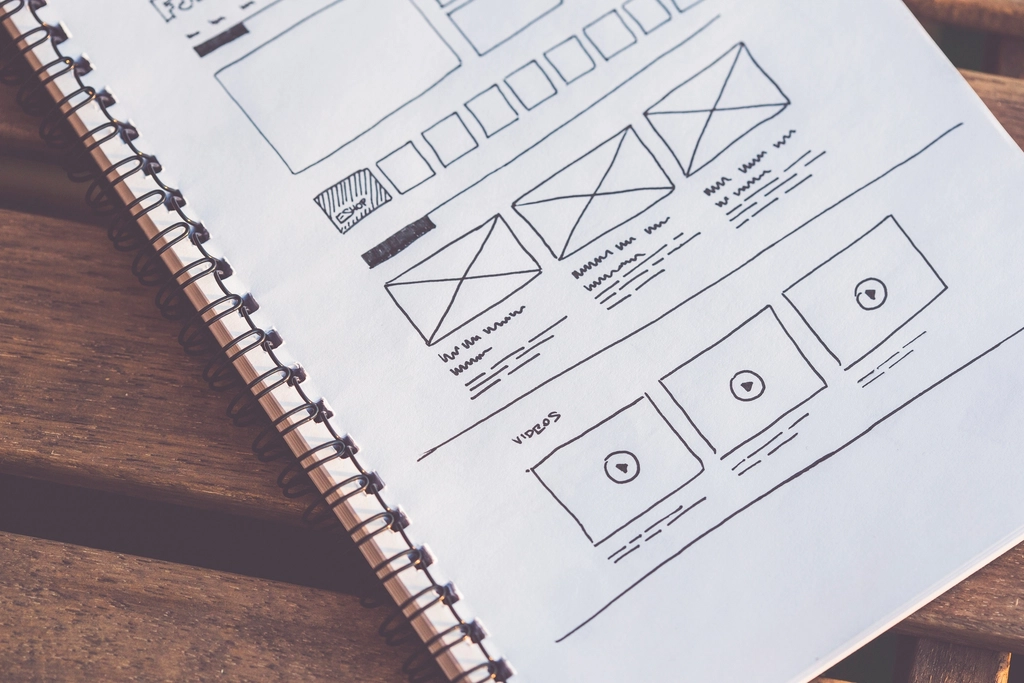

Free web design tools can help you build beautiful sites without spending a single dollar. You do not need to buy costly software to create layout ideas, pick colors, or edit images today. Great free apps give you everything you need right in your web browser.
The best free design tools in 2026 let you craft screen layouts, make graphics, and check your work on mobile screens easily. Tools like Figma, Canva, and Coolors help thousands of new designers start their creative projects every day. You can learn them quickly and make professional work by this afternoon.
THUMBNAIL DESIGN: White background, bold orange text that reads “7 Free Web Design Tools for Beginners”, and a clean visual of a computer monitor displaying colorful design layout blocks on the right side.
Why You Do Not Need Paid Software to Start
Starting out in web design used to mean paying hundreds of dollars for heavy software. That is no longer true for anyone with an internet connection. Most modern tools run fast right inside Chrome or Firefox.
Free tools offer plenty of space and options for new learners. They save your work to the cloud so you never lose a file when your laptop battery dies. My friend Maya made her first five client layouts using only free browser tools on a basic computer.
You also get access to huge online communities. When you use popular free tools, thousands of creators share tips, free templates, and helpful video guides online. You can fix mistakes in minutes just by watching a quick clip.

1. Figma for Layouts and Wireframes
Figma is the top choice for website layout design right now. The free plan lets you create three active files and work with a team member in real time. It works inside your web browser on Windows, Mac, or Linux systems.
You can drag boxes, add text, and test how buttons feel when a user clicks them. Figma makes it easy to set screen sizes for iPhones, Android phones, and desktop screens. You can see how your web page looks on mobile before you write any code.
Learning Figma takes just a few hours of practice. Start by rebuilding your favorite home page using simple gray rectangles. This exercise shows you how real websites group text and images together. You will build real design confidence very quickly this way.
2. Canva for Quick Banner Graphics
Canva makes it super simple to create pictures, banners, and blog images for your site. You do not need to know complex photo edit tricks to get high quality results. It features thousands of ready templates that you can change with a few clicks.
When you build a site, you often need header photos, social sharing images, and product shots. Canva gives you free stock photos, simple icons, and nice font pairs. You can drag your own pictures in and crop them to fit your layout perfectly.
Keep your graphics simple when using Canva templates. Change the template colors to match your main website theme. Download your final image as a compressed PNG or JPG file so your web pages load fast for visitors.
3. Coolors for Perfect Color Palettes
Picking colors for a website can feel scary when you are new. Coolors is a free web app that creates balanced color sets with a tap of your spacebar. It shows five colors side by side that look great together.
A good website uses two or three main colors at most. You need one background color, one dark text color, and one bright action color for buttons. Coolors gives you the exact hex color codes, like #FF5733, to paste straight into your design workspace.
If you already have one color you love, lock it on screen. Hit the spacebar again to generate matching shades around it. You can save your favorite palettes for free and share them with clients before starting a layout build.
4. Google Fonts for Clean Typography
Good typography makes up eighty percent of great web design. Google Fonts offers hundreds of free, open source font families that look crisp on every device screen. You can test them live on their site before choosing any for your design.
Stick with simple, easy to read fonts for body text. Fonts like Inter, Roboto, or Open Sans work great for long paragraphs. You can pick a bold, fun font for your page headlines to grab fast reader attention.
Avoid using more than two font families on one web page. Too many styles make a site feel messy and slow down page loading times. Check how your chosen fonts look on a small phone screen before you finalize your layout.
5. Font Awesome for Web Icons
Icons help visitors understand your site fast without reading long text blocks. Font Awesome gives you thousands of free icons for shopping carts, phone calls, search bars, and social media links. They look crisp on both small phones and huge monitors.
You can search for an icon, copy its code or image, and drop it straight into your Figma layout. Using clear icons makes your site navigation simple for everyone. A small envelope icon next to your email address makes your contact link stand out instantly.
Make sure all your icons use the same style. Do not mix thin line icons with thick solid icons on the same page. Keeping icon weight matching across your layout gives your design a polished, high end feel.
What Are the Best Free Web Design Tools for Beginners?
The best free tool stack pairs Figma for main page layouts with Google Fonts for body text. You can add Canva for header graphics and Coolors for color choices. This group of tools covers every step from basic idea to finished page style.
Here is a quick breakdown of what each tool handles best for your project:
- Figma: Page layouts, interactive buttons, and screen sizes.
- Canva: Social media pictures, website banners, and blog graphics.
- Coolors: Color schemes, background tones, and text contrast colors.
- Google Fonts: Web safe headline styles and readable body fonts.
- Font Awesome: Simple menu icons, search symbols, and action buttons.
Using these five free tools together saves you time and keeps your workflow clean. You can practice your skills without entering a credit card anywhere. Once your graphics and layouts look good, you can share your work on social channels using smart Social Media Marketing Tips for Small Businesses in 2026 to reach your first real web design clients.
6. TinyPNG to Make Images Load Fast
Large image files can ruin a great website design by making pages load slow. TinyPNG is a free web tool that shrinks image file sizes without dropping picture quality. You drop your PNG or JPG files onto the page and download smaller files instantly.
A banner image that starts at 4 megabytes can drop down to 500 kilobytes in two seconds. Fast loading pages keep visitors happy and help your site rank higher on Google search results. Always compress every image before you upload it to your web server.
Try to keep every website image under 200 kilobytes when possible. Smaller files save phone data for your site visitors on mobile connections. This simple habit separates amateur web builders from true digital professionals.
7. Penpot for Open Source Design
Penpot is a newer free tool that built a big following among modern designers. It is open source, which means the code is free for anyone to use and inspect. You can use it in your browser or host it on your own private server if you prefer.
It works a lot like Figma, so you can build screen layouts, draw shapes, and edit text easily. Penpot uses standard web code formats under the hood, which makes handing off designs to web developers very smooth. You can read more about open source software options on Evergreen software community pages online.
If you like total freedom over your files, Penpot is a wonderful app to try today. It has no hidden limits on your file counts or project sizes. It is a great option for students and creators who want long term free tools.
How to Start Practice Building Today
The best way to learn web design is by making simple projects right now. Pick one tool from this list and open it in your browser. Spend thirty minutes clicking buttons and testing layout ideas without worrying about making mistakes.
Try recreating a web page you use every day, like a favorite news site or blog. Focus on putting text blocks, images, and buttons in the right spots. You will see how simple web layouts really are once you break them into basic box shapes.
You can find more helpful tutorials and web resources on the Creative Ideas home page to guide your growth. Keep practicing every week, build a small collection of your work, and share your fresh web layouts with friends to get real feedback.
Which free web design tool will you try out first today?



Related Articles

Reviving Heritage: A Case Study on Modern Identity
Sep 28, 2023
Maximizing ROI with Targeted Social Campaigns
Aug 10, 2023